
Custom SIP
Connect your own PBX / SIP trunk to Speaknode — setup on both the PBX side and the platform side
Speaknode supports connecting any SIP telephony — your own PBX (Mango Office, Asterisk, FreeSWITCH, a virtual PBX from a provider) — over standard SIP. This is an alternative to the Twilio and VoxImplant integrations for setups where you already have your own SIP trunk.
Architecture
A Custom SIP connection has two sides, each with its own configuration. Both sides must be set up for calls to flow in both directions.
| Side | Responsibility |
|---|---|
| Your PBX / SIP provider | Terminates the PSTN call, routes inbound to us, accepts our outbound |
| Speaknode (LiveKit SIP) | Accepts inbound INVITE from your PBX, initiates outbound to it, dispatches the AI agent into a LiveKit room |
PSTN ──► Your PBX ──SIP INVITE──► LiveKit SIP gateway ──► AI agent (LiveKit room)
PSTN ◄── Your PBX ◄──SIP INVITE── LiveKit SIP gateway ◄── AI agent (outbound)
LiveKit as a SIP endpoint
The platform's LiveKit server includes a built-in SIP component that behaves like a regular SIP trunk: it accepts INVITE, authenticates, routes into a LiveKit room with the agent, and conversely originates outbound INVITE under its own identity.
What to configure on the platform side
In Speaknode you create a Custom SIP account — the bundle of parameters describing your PBX. Once created, the platform returns the public LiveKit data (gateway domain and our outbound IPs) that you share with the PBX side.
Create the account
- Go to Phone Numbers in https://app.speaknode.com
- Click Import number → From Custom SIP
- In the drawer click Add Custom SIP account
- Fill out the form:
| Field | What to enter | Example |
|---|---|---|
| Account name | Any human-readable name | Mango Office |
| SIP server address | host[:port] of your PBX's SIP server (for our outbound calls). Empty = outbound disabled | vpbx400312852.mangosip.ru |
| SIP transport | Transport protocol: Auto / UDP / TCP / TLS. Auto lets LiveKit pick | Auto |
| Destination country | ISO-3166 α-2 (2 letters). Hint for LiveKit billing/routing, not a destination restriction | RU |
| Allowed inbound IPs | Comma-separated list of IPv4 / IPv4 CIDR — the PBX IPs from which LiveKit will accept INVITE | 1.2.3.4, 10.0.0.0/24 |
| Outbound SIP username/password | Optional. If set — we authenticate to your PBX via Digest auth. If empty — IP-trust (your PBX trusts our IPs) | livekit-out / *** |
| Inbound SIP username/password | Optional. If set — LiveKit requires Digest auth from your PBX on inbound calls. Most providers don't challenge inbound — leave empty | empty |
Pick up the platform's public parameters
Once the account is created the card shows:
- Domain — the public LiveKit SIP gateway domain, e.g.
livekit-sip.speaknode.com:5060. This is the destination your PBX sendsINVITEto for inbound calls. - Our SIP server IPs — the list of our outbound IPs, e.g.
78.47.123.164:5060. Add these to your firewall whitelist so the PBX accepts our outbound calls.
Hand these to the PBX admin — without them the other side can't be configured.
Bind a phone number
Once both sides are configured you can bind a number to an agent:
- Phone Numbers → Import number → From Custom SIP
- Pick the SIP account you created
- Enter the number in E.164 format (e.g.
+71234567890) - (optional) add a label
- Click Connect
After binding, open the number's card and assign the agent that should handle inbound calls to it.
What to configure on the PBX side
On your SIP PBX (Mango, Asterisk, etc.) you set up three things: where to forward inbound calls, who is allowed for outbound, and authentication (if used).
Route PBX outbound to LiveKit (our inbound)
For PSTN inbound calls through your PBX to the agent, configure a route to our SIP gateway:
- Destination / Outbound trunk URI: the LiveKit SIP gateway domain from the account card in Speaknode — e.g.
sip:livekit-sip.speaknode.com:5060 - Transport: matches what you set in the Custom SIP account (
UDP/TCP/TLSorAuto) - Authentication (if Inbound auth is enabled): username/password from the Custom SIP account form
The specific steps depend on your vendor:
- Mango Office — SIP trunk → "Routing" section → create a rule pointing the destination to our domain
- Asterisk — add an
extensioninextensions.confwithDial(SIP/livekit-sip.speaknode.com)via a configured[livekit]SIP peer - Virtual PBX from another provider — look for "Outbound routes" / "Outbound routing" / "SIP trunk"
Whitelist our IPs (our outbound)
If your PBX sits behind a firewall, add our outbound IPs (Our SIP server IPs from the card) to the whitelist — without that your server will drop our INVITE packets for outbound calls from the agent.
Depending on the provider:
- Corporate firewall — add IPs to your rules
- Cloud PBX (Mango etc.) — IP whitelist in the admin panel
- Asterisk + iptables —
iptables -A INPUT -s <ip> -p udp --dport 5060 -j ACCEPT
Outbound authentication (if enabled)
If you set Outbound SIP username/password in our account — create a SIP account on the PBX side with the same credentials. LiveKit will use them to authenticate when originating outbound calls.
If left empty — IP-trust mode: the PBX just trusts our IPs without a username/password. This is typical for Mango SIP trunk, Plivo, and other IP-allowlist providers.
Pass call data to the agent
The agent knows who is calling and which number was dialled, and can receive any data of yours about the call (amount, contract number, customer name).
Number in To — the number bound to the agent, exactly as you imported it (e.g. 71234567890). It selects the agent; a call to another number or in another format (+7… instead of 7…, an extension like 1001) is rejected.
Number in From — the caller's number. The agent sees it as the variable {{system__from_number}}; call history shows it as the customer's number.
Your own data — as X-* headers in the INVITE:
INVITE sip:[email protected] SIP/2.0
From: <sip:[email protected]>;tag=…
To: <sip:[email protected]>
X-minimumAmount: 15000
X-loan-id: L-42
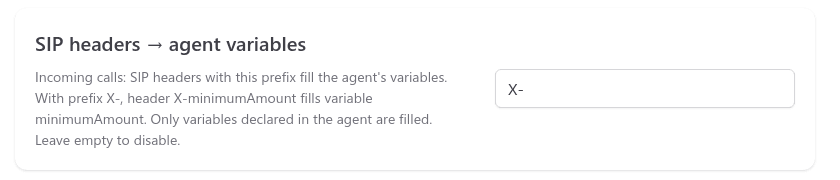
To turn headers into agent variables:
- Declare the variables on the agent — e.g.
minimumAmountandloan_id— and use them in the prompt or first message:{{minimumAmount}}. - In the phone number card (Phone Numbers → number), block SIP headers → agent variables, set the prefix
X-.
Header X-minimumAmount fills variable minimumAmount: the prefix is stripped, case does not matter, - and _ are the same (X-loan-id → loan_id). Only variables declared on the agent are filled; system variables (system__*) are never filled from headers. A value is up to 1024 characters, at most 50 variables per call.
The prefix selects headers for variables. Every header of the INVITE is stored regardless, including the standard ones (P-Asserted-Identity, Diversion, User-Agent) — you can see them on the call card, see Debugging.
Values are substituted into the agent's system prompt and first message the same way as outbound-call variables, and are kept in the call history.
The trunk starts passing headers when a number is bound. Accounts created before 2026-10-13 need to re-bind a number once or run Reprovision (see below) — otherwise the headers never reach us.
Debugging: what the PBX actually sent
A variable came out empty, and it is unclear why: the PBX did not send the header, sent it under another name, or the variable is not declared on the agent. To tell these apart, every incoming call stores all the headers of its INVITE — not only the ones that matched the prefix and the agent's schema.
Look here: Conversations → Calls → the call → SIP INVITE headers.
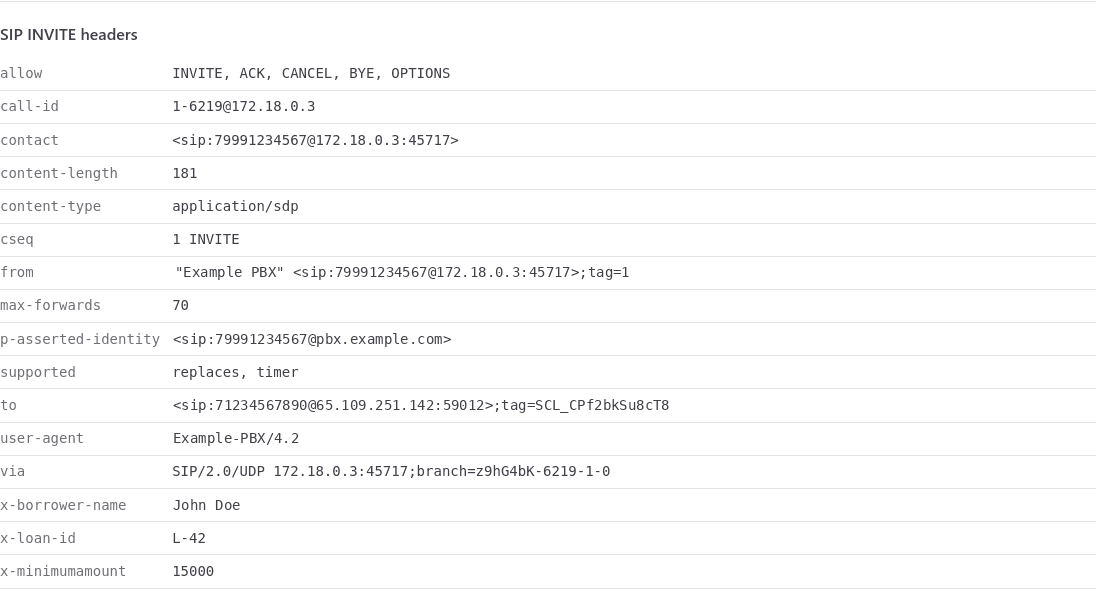
The table holds exactly what arrived: names in lower case, values as they came. Next to it, the Agent variables block shows what of it reached the agent. Comparing the two answers the question:
| What you see | What it means |
|---|---|
| The header is not in the table at all | The PBX did not send it — a question for their side |
| Header is there, variable is not | The name did not match, or the variable is not declared on the agent |
| Both are there | All good |
| The header table is empty | The trunk was not recreated after the number was bound — run Reprovision |
Headers are stored regardless of the prefix and the agent's schema, so the table fills in even before any mapping is configured: first see what the PBX sends, then set up the prefix and the variables.
Headers carry personal data — names, amounts, contract numbers. They are visible to everyone with access to call history and are sent to the CallStarted / CallFinished webhooks. Values are never written to the logs, only header names.
Authentication modes
A Custom SIP account configures two directions independently — outbound and inbound. For each, you choose one of two modes:
| Mode | When to use | What to do |
|---|---|---|
| Digest auth | The provider requires SIP authentication via username/password | Set both fields (username + password) |
| IP-trust | The provider authorizes via IP allowlist without authentication (Mango SIP trunk, Plivo, etc.) | Leave both fields empty |
Pair invariant
The username and password are always set together or both left empty. Filling one without the other is rejected by the UI.
When editing an account, the password field has three states:
- Untouched — current password is kept
- Explicitly cleared — auth is disabled (clear the username too)
- New value entered — password is replaced
Verify and Reprovision
The Custom SIP account card exposes two diagnostic operations:
Verify
The Verify button runs a health check and shows four checks:
| Check | Meaning |
|---|---|
| Local config | Account is correctly configured in the DB (required fields are set) |
| Inbound trunk | LiveKit sees the inbound SIP trunk, ready to accept inbound calls |
| Outbound trunk | LiveKit sees the outbound SIP trunk, ready to originate outbound calls |
| Numbers in sync | Bound numbers are synced with LiveKit |
Each check is OK / Failed / Skipped. On Failed the reason is shown.
Reprovision
The Reprovision button deletes and recreates the LiveKit trunks from the current DB config. Use it in two cases:
- After editing credentials / server / transport on the account card (changes auto-reinitialize trunks; reprovision is a fallback if auto reinit didn't catch)
- If LiveKit was unavailable when you first created the account or bound a number and the trunks didn't get created (HTTP 500 on bind / create)
Reprovision and active calls
Reprovision deletes the existing trunks. Any active calls going through them at that moment will drop. Run reprovision outside peak hours or when there are no active sessions.
Deleting the account
When you delete a Custom SIP account (the Delete button on the card), the platform:
- Removes all bound numbers
- Removes the LiveKit inbound / outbound trunks
- Soft-deletes the account in the DB
Your PBX-side routing to our gateway will remain — clean it up manually in the provider's admin panel if needed.
Common issues
| Symptom | Cause | Fix |
|---|---|---|
Verify → Inbound trunk: Failed | LiveKit didn't create the inbound trunk (was unavailable on create) | Reprovision |
Verify → Numbers in sync: Failed | DB ↔ LiveKit drift (e.g., manual edit in LiveKit) | Reprovision |
| Inbound calls don't reach the agent | Wrong destination on the PBX, or our IP isn't whitelisted | Check Domain on the card and the IP allowlist on the PBX |
| Outbound fails with 403 / 407 | Outbound auth mismatch | Check Outbound username/password on the card and the SIP account on the PBX |
| Outbound times out | Our IPs aren't whitelisted on the PBX firewall | Add Our SIP server IPs to the whitelist |
409 on phone number bind | The number is already bound to another Custom SIP account (possibly in another Space) | Use a different number or remove the prior binding |
| A variable from a header is empty | The header was not sent, was sent under another name, or the variable is not declared on the agent | Compare the two tables on the call card — Debugging |
| No headers on the call card | The trunk was created before the number was bound and does not know about header passing | Reprovision |